A connection you can see.
Clear connection status and saved pairing details. When you return, VELIO tries to reconnect to your television.
YOUR NEW TV REMOTE
Less time looking for the remote.
More time enjoying what you love.
VELIO turns your phone into an elegant remote. Navigate, search and open your favourite TV apps — all in one calm, clear interface.
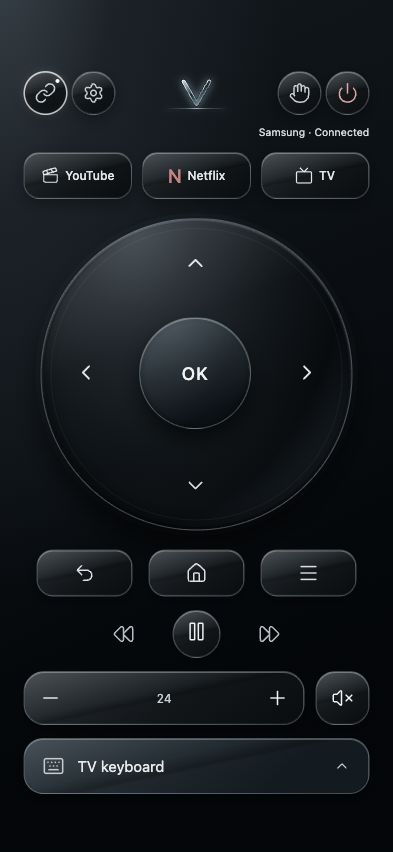
A preview of the new Glass Horizon design.
01 / FEEL MATTERS
Generous buttons. Clear gestures. A subtle glow.
A remote that feels familiar from the moment you pick it up.
TAP. SWIPE. TAKE CONTROL.
Choose the directional ring or touchpad. Hold + or − to keep adjusting the volume, or tap for a single step.
TYPE ON YOUR PHONE.
Prepare text for YouTube, Netflix or the browser on your phone. Text input support depends on the TV and the app you have open.
TV, THE WAY YOU WATCH IT.
On a supported Samsung TV, find your installed apps and assign one to the TV button — T‑2, for example. Shortcut availability depends on the television.
02 / FROM A WORD TO YOUR EVENING
An artist, a film or a favourite search. Use the TV keyboard to type where it feels easiest.
First, open the relevant search screen in the app on your TV. Input depends on the TV app and keyboard layout; confirm the search on the television.
 YouTubePREVIEW
Your next favourite moment.
SEARCH. DISCOVER. ENJOY.03 / WHY VELIO
Clear connection status and saved pairing details. When you return, VELIO tries to reconnect to your television.
Tap for one step, hold for more. Volume, mute and playback together, without searching through menus.
iPhone or Android — the same approach, clear controls and a distinctive VELIO style. No VELIO account to create.
Slovenščina · Bosanski · English · Deutsch · Italiano · Français · Español · Magyar
04 / YOUR FIRST CONNECTION
Start with the television switched on.
Your phone and TV should be on the same home network.
Connect your phone and television to the same home network. Avoid guest networks that prevent devices from communicating.
Tap the connection icon. Choose your brand and the correct TV system, enter the television’s IP address, then tap “Connect TV”.
Approve “Allow” on your television. If it displays a pairing code, enter it in VELIO and follow the instructions.
Some TV systems may require an additional check in the app. Pairing details are saved on your phone; your television may occasionally ask you to approve the connection again.
05 / YOUR TV, THE RIGHT SYSTEM
Samsung, LG, Sony, Philips, Hisense, TCL, Xiaomi and more. The TV’s operating system matters — a single manufacturer may use several.
Samsung Tizen: approve the connection on the TV. Waking from standby depends on the model and its network settings.
Features vary by model, system and the TV app in use. Listing a brand does not mean every model is supported. Testing with your own TV matters.
BE THERE FROM THE START
Beta testing is underway on iOS and Android.
A public release is coming. Join us and help shape what comes next.
Test on your iPhone through TestFlight. Access to the current version is by invitation and depends on availability in the beta programme.
I’d like to test on iPhoneJoin the VELIO testers group. Installation through Google Play is available to eligible accounts when a test release is available.
Join the Android testersFor Android, use the same Google account for the group and Google Play. Group membership alone does not guarantee immediate access. The new Glass Horizon design is prepared for the next app update.
Not every TV. Compatibility depends on the TV system, model, network settings and permissions. Available features differ between systems. VELIO does not currently support Roku, Fire TV, Xumo, Titan/Saphi or some newer Philips and Panasonic protocols.
Usually in your TV’s settings under Network, Network Status or Network Information. Look for an IPv4 address, such as 192.168.x.x. Menu names vary by model.
This gives your phone permission to control the television. Some systems show a pairing code instead. On Samsung, VELIO may also ask you to verify the TV’s identity — check the details and approve only your own television. Do not approve an unfamiliar device.
Wake is available for supported Samsung televisions and depends on the model, standby state and network settings. Your phone and TV must be on the same network. Wake is not guaranteed for every TV system.
First, open search and the relevant input field or supported keyboard on the TV. In VELIO, choose the app, enter your text and send it. Support depends on the TV app; some input modes need a specific starting selection on the TV keyboard. Confirm the search on the television.
You do not need to create a VELIO account to use the current remote. To install the beta app, you need the relevant Apple or Google account and access to the testing programme.
We are currently testing beta versions for iOS and Android. A public release is coming. For iOS, let us know by email; for Android, join the testers group. Access depends on the current test release and approval.
YOUR TV TIME IS YOURS.